
netPark does not offer SEO services, nor do we set up or manage Google Analytics, Google Tag Manager, or any related tracking tools for clients. The documentation provided below is for informational purposes only. It explains how our modules interact with Google Analytics, Google Tag Manager, and UTM code tracking, as well as the events we send as part of this process.
If you require assistance with SEO, Google Analytics, or Google Tag Manager setup and management, we recommend consulting a qualified professional or service provider.
Website
Initial Setup
Google Analytics 4 (GA4)
Creating a GA4 Account:
Please follow Google’s support page by clicking here.
How to Get Your GA4 ID:
- Sign in to Google Analytics: Go to analytics.google.com and log in with your Google account.
- Click “Admin”: This option is located in the bottom-left corner of the page.
- Select the Correct Property: Use the dropdown menu to choose the appropriate property.
- Click “Data Streams”: You’ll find this in the Property column.
- Select the Relevant Data Stream: Choose the data stream associated with your website.
- Locate the “Google Tag” Section: On the “Web Stream Details” page, scroll to the “Google tag” section.
- Click “Configure Tag Settings”:
- Find Your GA4 ID: Your Measurement ID (in the format
G-XXXXXXX) will be displayed in the “Your Google tag” section.
You will need this for the next step
Google Tag Manager (GTM)
Creating a GTM acccount:
Please follow Google’s support page by clicking here.
How to get your GTM ID:
- Log into Google Tag Manager: Go to tagmanager.google.com and sign in with your Google account.
- Open a Container: Select the relevant GTM account, then click on the container you want to use.
- Locate the GTM ID: Inside the container, look in the top-right corner next to the “Submit” and “Preview” buttons.
The ID will be displayed in the format
GTM-XXXXXX.
You will need this for the next step
Adding Tracking Codes in WordPress
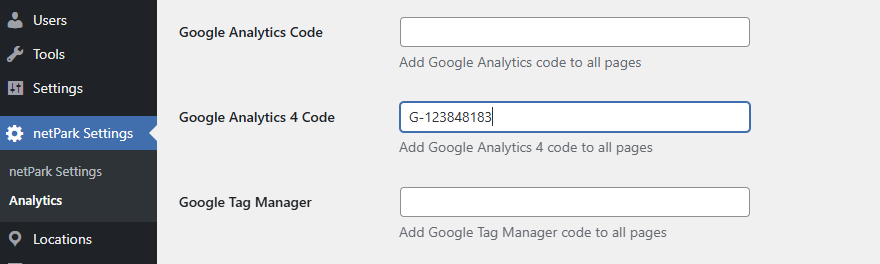
- In your WordPress dashboard, go to netPark Settings.
- Look for the fields labeled Google Analytics 4 Code and Google Tag Manager. These are typically the second and third options in the settings.
- Enter your GA4 Measurement ID (e.g.,
G-XXXXXXX) and/or your GTM Container ID (e.g.,GTM-XXXXXX) in the appropriate fields. - Save your changes to apply the tracking codes.
Use the codes you obtained from the previous steps above. It is recommended to only use one ga or gtag, not both
UTM Data
UTM Tracking with netPark:
When UTM parameters are included in the URL, netPark captures and attaches them to all relevant events listed in the events section. For more information on UTM data click here.
Example: https://reservations.netpark.us/?utm_id=myId&utm_source=facebook&utm_campaign=myCamp
Which UTM parameters are tracked?
utm_id– Campaign ID. Used to identify a specific campaign or promotion. This is a required keyutm_source– Identifies the source of the traffic (e.g., Google, Facebook, Newsletter).utm_medium– Marketing medium, for example: cpc, banner, email.utm_campaign– Names the campaign associated with the traffic.utm_source_platform– Indicates the advertising platform (e.g., Google Ads, Meta Ads).utm_term– Identifies the keyword or term used in paid search campaigns.utm_content– Differentiates similar content or links within the same ad or campaign.utm_creative_format– Describes the type of creative used (e.g., banner, video, carousel).utm_marketing_tactic– Helps specify the marketing strategy or tactic used.
These values are passed along with every captured netPark custom event. This enables you to analyze how users arrive at your site and how campaigns perform over time.
Custom Netpark Events
All events will be in this format:
With “event” being the event name, and “eventModel:” being the parameters.
 event:"fetchReservationPriceQuotes",
 eventModel: {
 startDate: "2025-03-28 20:00",
 endDate: "2025-03-31 20:00",
 promoCode: ""
}, 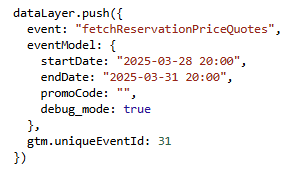
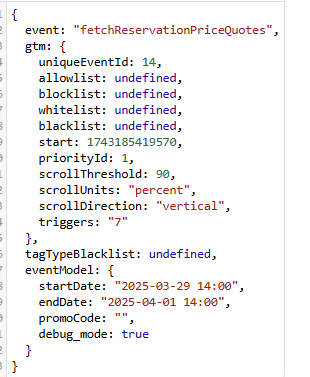
Any data contained in the gtm object is automatically added by google tag manager.
Reservation Page
| # | Event Name | Parameters | Description |
|---|---|---|---|
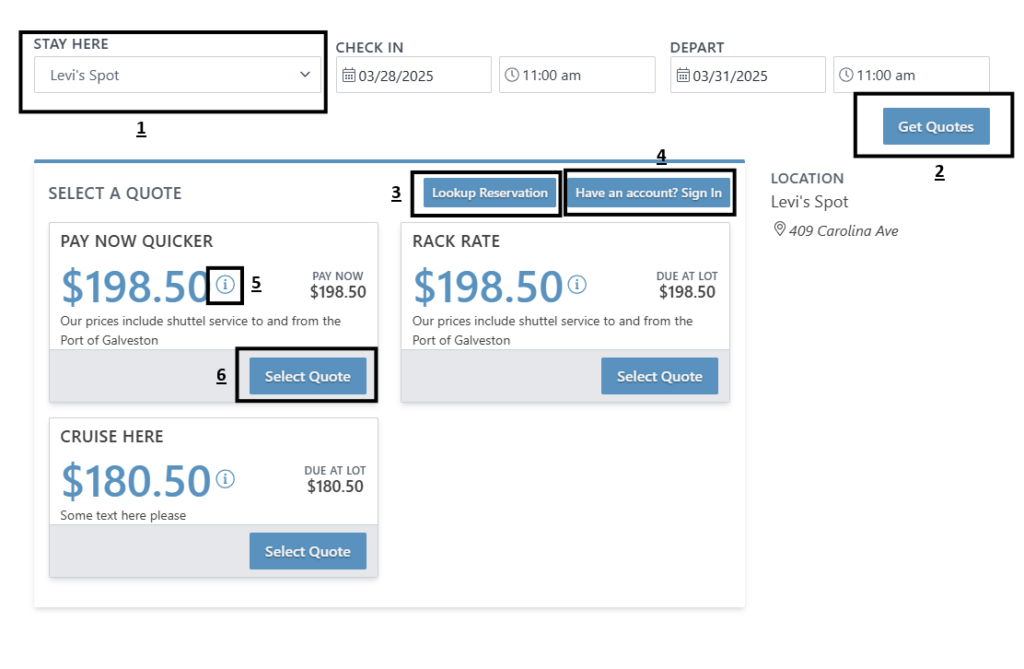
| 1 | locationChange | newLocationCodeID: string | When the location is changed, sends over the new location in this format: location#-subLocation# |
| 2 | fetchReservationPriceQuotes | startDate: Date(“YYYY-MM-dd hh:mm”), endDate: Date(“YYYY-MM-dd hh:mm”), promoCode: string | When the customer clicks the button, sends over the start date, end date, and promo code |
| 3 | genericButtonPressed | buttonName: string, fromInfo: string | This is a generic button press event. buttonName will be the name of the button pressed. buttonName = “reservationLookup” here. |
| 4 | genericButtonPressed | buttonName: string, fromInfo: string | This is a generic button press event. buttonName will be the name of the button pressed. buttonName = “signIn” here. |
| 5 | showQuoteDetails | theQuote: quoteObject, fromClickingWidgetExtraInfo: string | This is sent when the info “i” is hovered. The quote will be all the quote details. fromClickingWidgetExtraInfo will be from which screen or webpage it was pressed. fromClickingWidgetExtraInfo is mostly pertinent in the app |
| 6 | userSelectedQuote | theQuote: quoteObject | When the customer clicks to select a quote, this event is sent. |
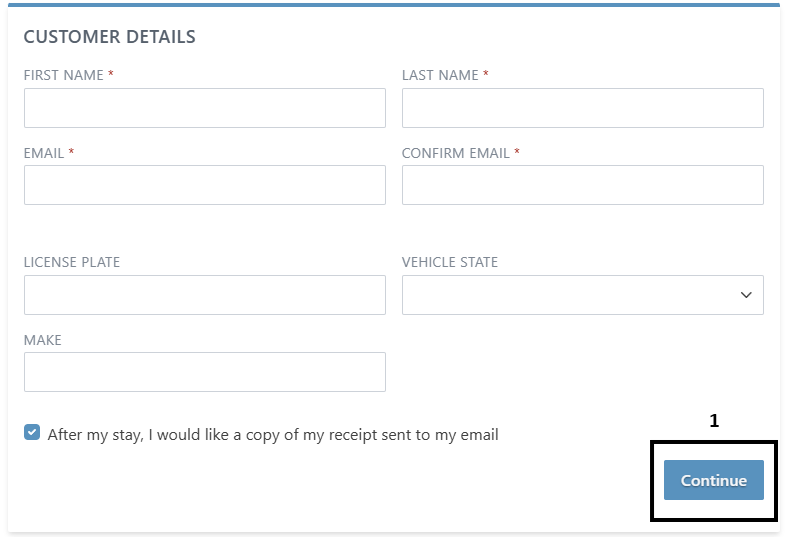
netPark does not send any of the data filled out here. If you are wanting to track customer progressing through this section you can use a standard google click event. The name send with the click will be “Reservation – Services” like seen below.
| # | Event Name | Parameters | Description |
|---|---|---|---|
| 1 | click | name: string | The name will be: Reservation – Services |
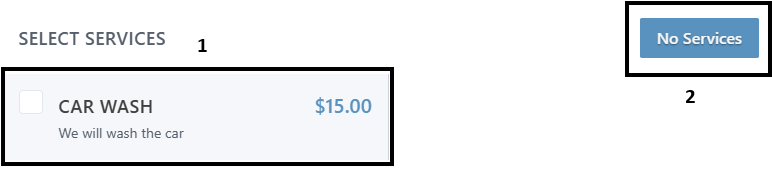
| # | Event Name | Parameters | Description |
|---|---|---|---|
| 1a | editServicesAddService | serviceAdded: serviceObject | When a service is selected the details of the service being added will be sent. |
| 1b | editServicesRemoveService | serviceRemoved: serviceObject | When a service is unselected the details of the service being removed will be sent. |
| 2 | clickFinalizeServiceChanges | services: serviceObject[] | When clicked, will send over an array of serviceObject’s. If “No Services” is pressed, then an empty array will be sent. |
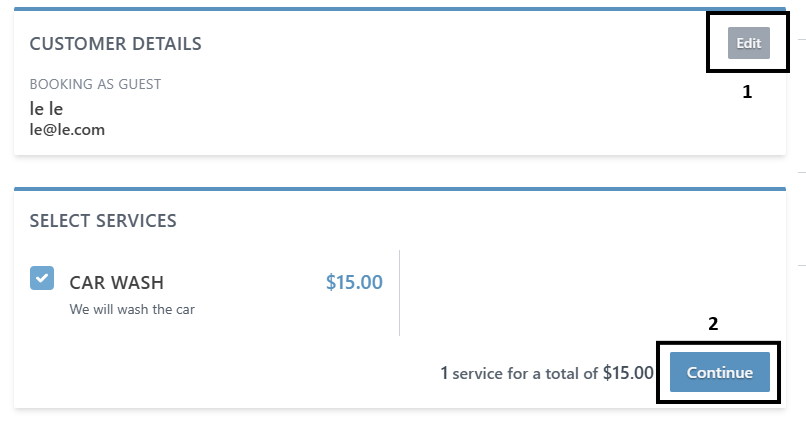
| # | Event Name | Parameters | Description |
|---|---|---|---|
| 1 | reservationEditButtonClick | edit: string | When clicked, this will send over which part of the reservation form is now being edited. |
| 2 | clickFinalizeServiceChanges | services: serviceObject[] | When clicked, will send over an array of serviceObject’s. If “No Services” is pressed, then an empty array will be sent. |
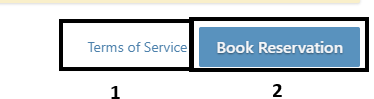
| # | Event Name | Parameters | Description |
|---|---|---|---|
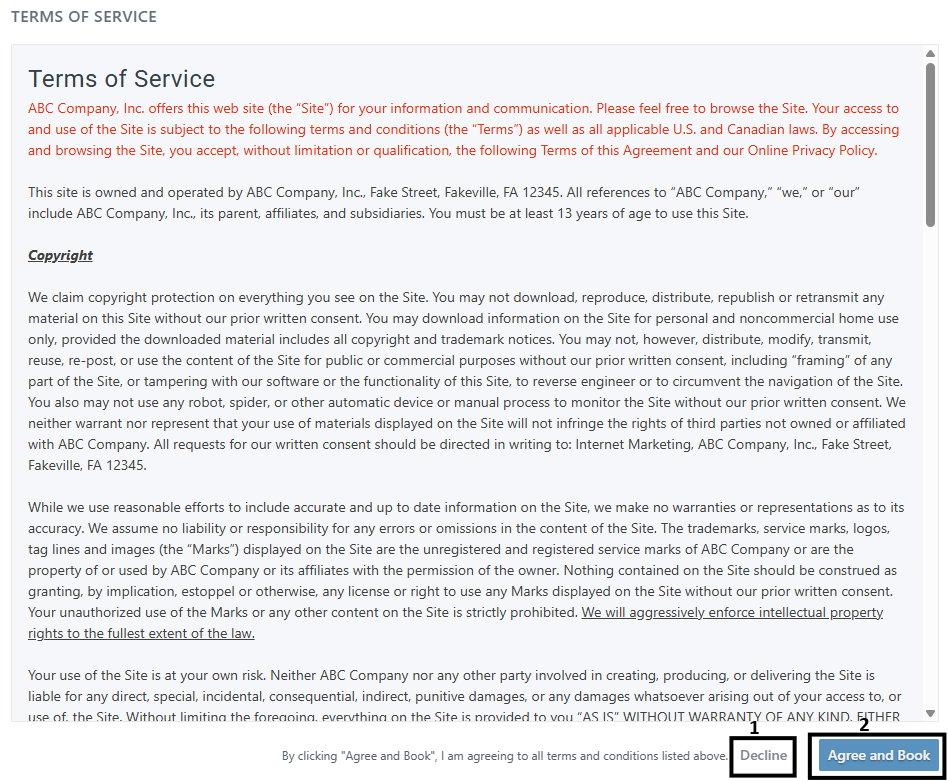
| 1a | genericButtonPressed | buttonName: string, fromInfo: string | This is a generic button press event. buttonName will be the name of the button pressed. buttonName = “showTOS” here. |
| 1b | genericButtonPressed | buttonName: string, fromInfo: string | This is a generic button press event. buttonName will be the name of the button pressed. buttonName = “closeTOS” here. |
| 2a | clckdBookReservationAndShowingTOS | fromInfo: string | If there are terms of service, then this event will be sent. |
| 2b | clickedSaveReservation | alsoCheckedSaveToAccountProfile: boolean fromInfo: string | If the reservation is saved with no errors this event is sent. alsoCheckedSaveToAccountProfile is if a new card was saved to an account |
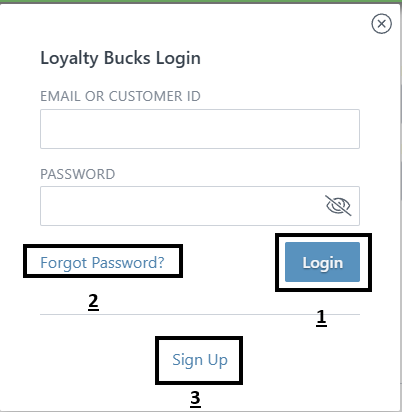
Login Popup
| # | Event Name | Parameters | Description |
|---|---|---|---|
| 1 | loginAttempt | location: string | location in this format: location#-subLocation#. |
| 2 | genericButtonPressed | buttonName: string, fromInfo: string | This is a generic button press event. buttonName will be the name of the button pressed. buttonName = “forgotPassword” here. |
| 3 | genericButtonPressed | buttonName: string, fromInfo: string | This is a generic button press event. buttonName will be the name of the button pressed. buttonName = “signUp” here. |
| # | Event Name | Parameters | Description |
|---|---|---|---|
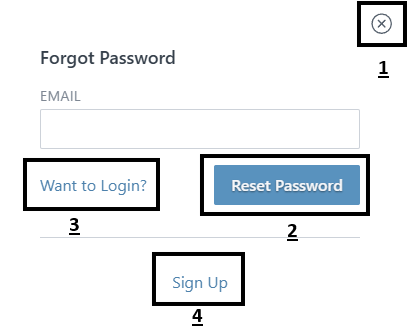
| 1 | genericButtonPressed | buttonName: string, fromInfo: string | This is a generic button press event. buttonName will be the name of the button pressed. buttonName = “continueAsGuest” here. |
| 2 | genericButtonPressed | buttonName: string, fromInfo: string | This is a generic button press event. buttonName will be the name of the button pressed. buttonName = “backToSignIn” here. |
| 3 | genericButtonPressed | buttonName: string, fromInfo: string | This is a generic button press event. buttonName will be the name of the button pressed. buttonName = “signUp” here. |
Profile Page
| # | Event Name | Parameters | Description |
|---|---|---|---|
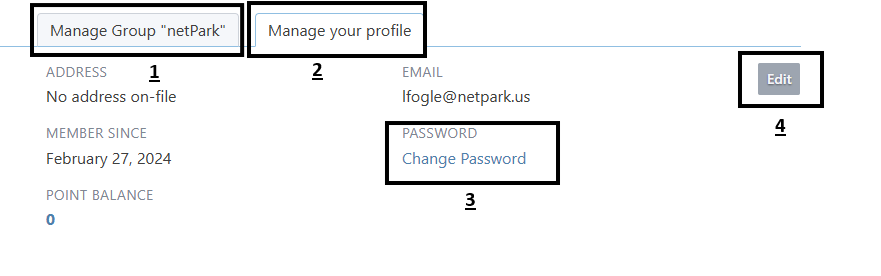
| 1 | clickedButtonToMoveToTab | destinationTab: string | This is only viewable if the customer is a company admin. This event is used to notify when different tabs are being accessed. destinationTab = “group” here. |
| 2 | clickedButtonToMoveToTab | destinationTab: string | This event is used to notify when different tabs are being accessed. buttonName = “backToSignIn” here. |
| 3 | genericButtonPressed | buttonName: string, fromInfo: string | This is a generic button press event. buttonName will be the name of the button pressed. buttonName = “changePassword” here. |
| 4 | genericButtonPressed | buttonName: string, fromInfo: string | This is a generic button press event. buttonName will be the name of the button pressed. buttonName = “editPersonalInfo” here. |
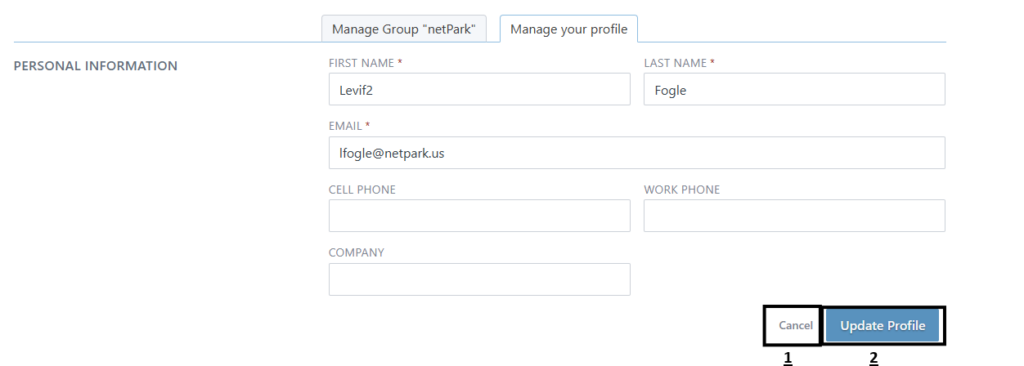
| # | Event Name | Parameters | Description |
|---|---|---|---|
| 1 | clickedButtonToMoveToTab | destinationTab: string | This is only viewable if the customer is a company admin. This event is used to notify when different tabs are being accessed. destinationTab = “group” here. |
| 2 | clickedButtonToMoveToTab | destinationTab: string | This event is used to notify when different tabs are being accessed. buttonName = “backToSignIn” here. |
| 3 | genericButtonPressed | buttonName: string, fromInfo: string | This is a generic button press event. buttonName will be the name of the button pressed. buttonName = “changePassword” here. |
| 4 | genericButtonPressed | buttonName: string, fromInfo: string | This is a generic button press event. buttonName will be the name of the button pressed. buttonName = “editPersonalInfo” here. |
Purchase Event
The purchase event a a google analytics specific object that hold data specific to google. Google documentation can be found here. The items sent over will be the rate sent over, any service added, and all options set inside of netPark.
Below are the custom properties being added to the purchase event. Since GA4 doesn’t allow objects to easily be sent over, we flatten the object and add them as custom parameters.
If you look at the 2 objects they are identical except on GTM it stores like items in objects. These objects are: “parking”, “vehicle”, and “transaction”. See below for an example.
| Parameter Name | Description |
|---|---|
parkingEntryDate | Reservation start date in MM-DD-YYYY (month-day-year) format |
parkingEntryTime | Reservation start time in hh:mm a (hour:minute AM/PM) format |
parkingExitDate | Reservation end date in MM-DD-YYYY (month-day-year) format |
parkingExitTime | Reservation end time in hh:mm a (hour:minute AM/PM) format |
parkingTotalHours | Total number of hours between reservation start and end |
quoteName | Name of the rate selected |
quoteBreakdown | Detailed pricing breakdown of the selected quote |
parkingZone | Parking zone assigned to the reservation |
paymentType | Type of payment method used (if applicable) |
vehicle_make | Vehicle make associated with the reservation |
vehicle_model | Vehicle model associated with the reservation |
vehicle_color | Vehicle color associated with the reservation |
Custom Parameters on Purchase Event
The example below will also include all other google analytics required data, which can be found on their documentation.
GA4
{
  "event": "purchase",
  "eventModel": {
    "parkingEntryDate": "01-27-2026",
    "parkingEntryTime": "10:00 am",
    "parkingExitDate": "01-27-2026",
    "parkingExitTime": "03:00 pm",
    "parkingTotalHours": 5,
    "quoteName": "self uncovered1",
    "quoteBreakdown": "[{\"start_date\":1769533200, \"unit\":\"day\", \"quantity\":1, \"fee\":5.27,\"fpp\":0}]",
    "parkingZone": 1,
    "paymentType": "VI",
    "vehicle_make": "Toyota",
    "vehicle_model": "Rav4",
    "vehicle_color": "Blue"
  }
}
GTM
{
  "event": "purchase",
  "eventModel": {
    "parking": {
      "parkingEntryDate": "01-27-2026",
      "parkingEntryTime": "10:00 am",
      "parkingExitDate": "01-27-2026",
      "parkingExitTime": "03:00 pm",
      "parkingTotalHours": 5,
      "quoteName": "self uncovered1",
      "quoteBreakdown": [
        {
          "start_date": 1769533200,
          "unit": "day",
          "quantity": 1,
          "fee": 5.27,
          "fpp": 0
        }
      ],
      "parkingZone": 1
    },
    "transaction": {
      "paymentType": "VI"
    },
    "vehicle": {
      "vehicle_make": "Toyota",
      "vehicle_model": "Rav4",
      "vehicle_color": "Black"
    }
  }
}
Purchase Items
We send over up to 3 different purchase item categories: Parking, Option/Fee, Services.
Parking Item
| Parameter Name | Description |
|---|---|
item_id | This will be “rate_” + the rate_id. Rate_id will come from netpark |
item_name | The rate name from inside netpark |
price | Price of parking pretax |
item_category | The category of this item. This will be “Parking” |
coupon | Coupon / promo code being used |
discount | Amount being saved from the coupon |
quantity | How many of this added. Will be 1 |
item_variant | The variant of this item. This will be “website” |
number_of_passengers* | Number of passengers that can netPark collected from form (if set) |
booked_checkin* | Reservation start date in YYYY-MM-DD hh:mm:ss (year-month-day hour:minute:second) format |
booked_checkout* | Reservation end date in YYYY-MM-DD hh:mm:ss (year-month-day hour:minute:second) format |
booked_stay_length* | How long the reservation is in days hours and minutes |
booked_out* | The different between when the reservation was booked and the reservation start date in days hours and minutes |
company* | The company associated with the reservation |
parking_zone* | Parking zone associated with the reservation |
* This parameter is a custom parameter, not normally included on google purchase items.
Option/Fee Item
These are manditory options that are created inside of netpark. There can be multiple options/fees added to the purchase event.
| Parameter Name | Description |
|---|---|
item_id | This will be “option_” + option_id. Option_id will come from netpark |
item_name | The option/fee name from inside netpark |
price | Price of the option/fee |
item_category | The category of this item. This will be “Option/Fee” |
quantity | How many of this added. Will be 1 |
item_variant | The variant of this item. This will be “website” |
Services Item
This is the service added to the reservation.
| Parameter Name | Description |
|---|---|
item_id | This will be “service_” + service_id. service_id will come from netpark |
item_name | The service name from inside netpark |
price | Price of the service |
item_category | The category of this item. This will be “Services” |
quantity | How many of this added. Will be 1 |
item_variant | The variant of this item. This will be “website” |
Full Purchase Event Example
GA4
{
  "event": "purchase",
  "eventModel": {
    "value": "6.54",
    "items": [
      {
        "item_id": "rate_2",
        "item_name": "self uncovered1",
        "price": "3.16",
        "item_category": "Parking",
        "coupon": "test",
        "discount": "2.11",
        "quantity": 1,
        "item_variant": "website",
        "number_of_passengers": 3,
        "booked_checkin": "2026-01-27 10:00:00",
        "booked_checkout": "2026-01-27 15:00:00",
        "booked_stay_length": "0 days 5 hours 0 minutes",
        "booked_out": "0 days 20 hours 41 minutes",
        "company": null,
        "parking_zone": 1
      },
      {
        "item_id": "option_2",
        "item_name": "Illinois Clean Act",
        "price": "2.00",
        "item_category": "Option/Fee",
        "quantity": 1,
        "item_variant": "website"
      },
      {
        "item_id": "service_1",
        "item_name": "Car Wash",
        "price": "1.00",
        "item_category": "Services",
        "quantity": 1,
        "item_variant": "website"
      }
    ],
    "transaction_id": 600217,
    "coupon": "test",
    "tax": "0.38",
    "currency": "USD",
    "user_id": "",
    "user_data": {
      "address": {
        "sha256_first_name": "encryptedData",
        "sha256_last_name": "encryptedData",
        "sha256_street": "encryptedData",
        "city": "las vegas",
        "region": "nv",
        "postal_code": 88601,
        "country": "US"
      },
      "sha256_email_address": "encryptedData",
      "sha256_phone_number": "encryptedData"
    },
    "parkingEntryDate": "01-27-2026",
    "parkingEntryTime": "10:00 am",
    "parkingExitDate": "01-27-2026",
    "parkingExitTime": "03:00 pm",
    "parkingTotalHours": 5,
    "quoteName": "self uncovered1",
    "quoteBreakdown": "[{\"start_date\":1769533200, \"unit\":\"day\", \"quantity\":1, \"fee\":5.27,\"fpp\":0}]",
    "parkingZone": 1,
    "paymentType": "VI",
    "vehicle_make": "Toyota",
    "vehicle_model": "Rav4",
    "vehicle_color": "Blue"
  }
}
GTM
{
  "event": "purchase",
  "eventModel": {
    "value": "6.54",
    "items": [
      {
        "item_id": "rate_2",
        "item_name": "self uncovered1",
        "price": "3.16",
        "item_category": "Parking",
        "coupon": "test",
        "discount": "2.11",
        "quantity": 1,
        "item_variant": "website",
        "number_of_passengers": 3,
        "booked_checkin": "2026-01-27 10:00:00",
        "booked_checkout": "2026-01-27 15:00:00",
        "booked_stay_length": "0 days 5 hours 0 minutes",
        "booked_out": "0 days 20 hours 20 minutes",
        "company": null,
        "parking_zone": 1
      },
      {
        "item_id": "option_2",
        "item_name": "Illinois Clean Act",
        "price": "2.00",
        "item_category": "Option/Fee",
        "quantity": 1,
        "item_variant": "website"
      },
      {
        "item_id": "service_1",
        "item_name": "Car Wash",
        "price": "1.00",
        "item_category": "Services",
        "quantity": 1,
        "item_variant": "website"
      }
    ],
    "transaction_id": 600218,
    "coupon": "test",
    "tax": "0.38",
    "currency": "USD",
    "user_id": "",
    "user_data": {
      "address": {
        "sha256_first_name": "encryptedData",
        "sha256_last_name": "encryptedData",
        "sha256_street": "encryptedData",
        "city": "las vegas",
        "region": "nv",
        "postal_code": 88601,
        "country": "US"
      },
      "sha256_email_address": "encryptedData",
      "sha256_phone_number": "encryptedData"
    },
    "parking": {
      "parkingEntryDate": "01-27-2026",
      "parkingEntryTime": "10:00 am",
      "parkingExitDate": "01-27-2026",
      "parkingExitTime": "03:00 pm",
      "parkingTotalHours": 5,
      "quoteName": "self uncovered1",
      "quoteBreakdown": [
        {
          "start_date": 1769533200,
          "unit": "day",
          "quantity": 1,
          "fee": 5.27,
          "fpp": 0
        }
      ],
      "parkingZone": 1
    },
    "transaction": {
      "paymentType": "VI"
    },
    "vehicle": {
      "vehicle_make": "Toyota",
      "vehicle_model": "Rav4",
      "vehicle_color": "Black"
    }
  }
}
Notes
fromInfo is which app screen the user was on when the button was pressed. fromInfo is only applicable in the customer loyalty app.
See Our documentation to see more object schemas.
This page was updated January 27 2026