
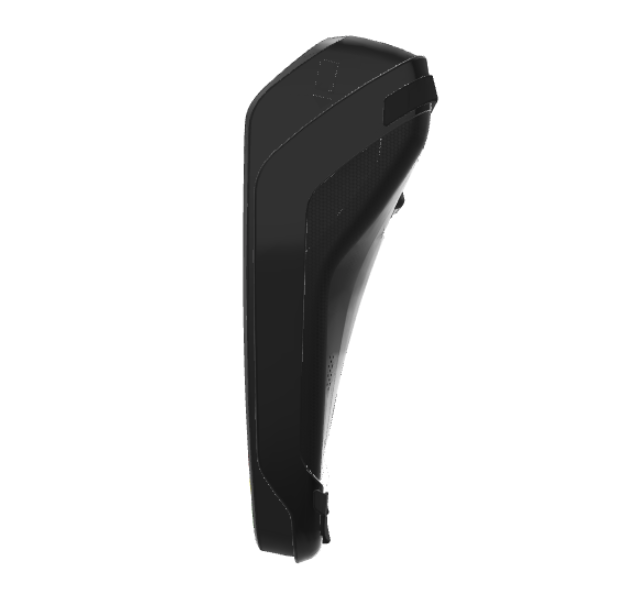
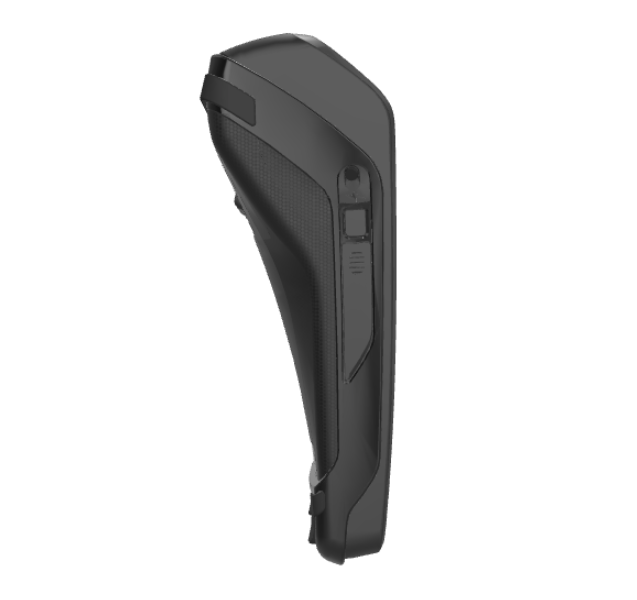
The Ingenico Move/5000 EMV credit card device is a WiFi connected device used in conjunction with netPark’s Desktop Application and numerous iOS based applications including the netPark Mobile Valet Application (MVS) and the netPark Event Application.
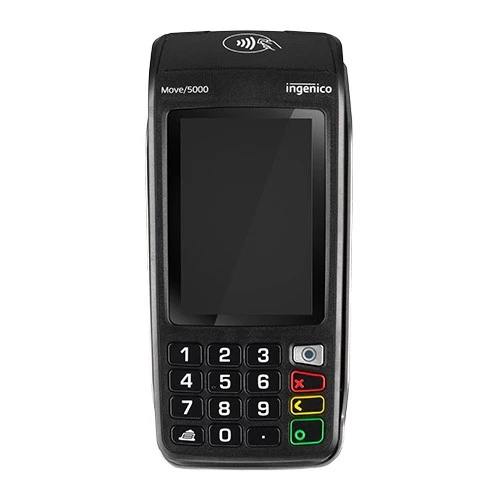
Device Overview
The Ingenico Move/5000 features a 3.5″ Color Touchscreen, Accepts EMV chip & PIN, contactless/NFC (Apple Pay, Google Pay), and magstripe payments. It features a long-lasting rechargeable battery for full-shift operation and can operate plugged into it’s wired charger. It has multiple connectivity options, including 4G/LTE and Wi-Fi.
Note: netPark currently support this devices connectivity in 4G/LTE and Wi-Fi only at this time.
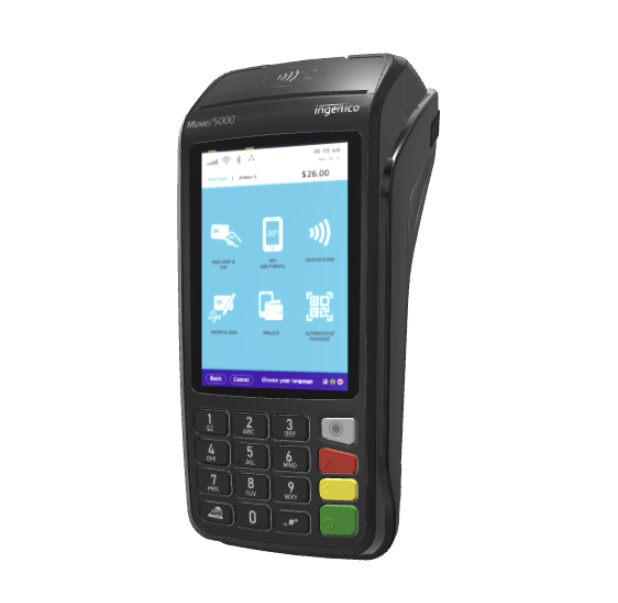
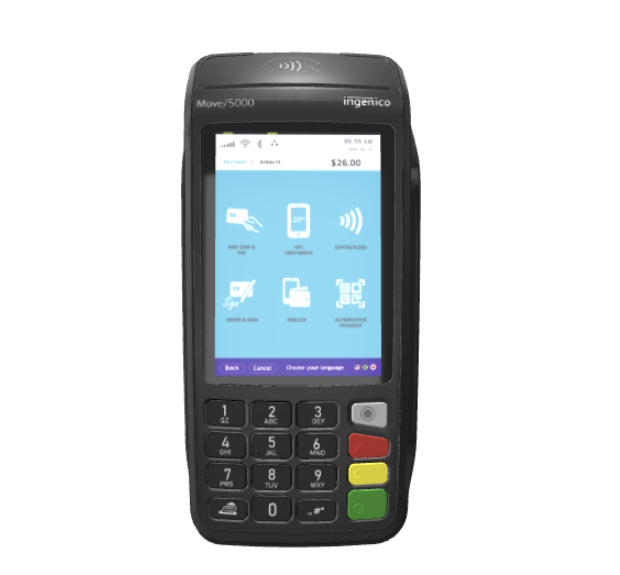
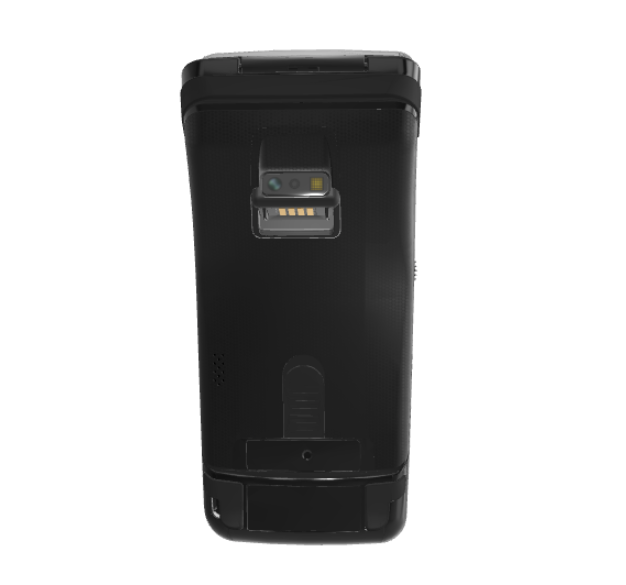
Connecting the Move/5000 to Wifi & Activating
Before activating the Move/5000 for processing, you’ll need to connect it to your network. Before beginning the steps below, make sure your Ingenico Move/5000 is plugged into it’s charging cord and being powered from the wall:
- Once the device fully powers up, you should see a screen that says either “TriPOS” or “POSTrack”, depending on your devices version. From this screen, type in “0001” and “Admin Menu” should appear.
- Click on “3-WiFi Parameters”
- Click on “2-Scan Networks”; The device should immediately go to an “Available networks” screen and you should see “Scanning…” appear after a few seconds.
- Once scanning is completed, you should see an available list of Wi-Fi networks appear; Tap on the network you wish to connect to.
- An “Enter password” field should appear; Enter the password for the Wi-Fi network you are connecting to here and then tap the Green Circle in the bottom right corner once finished.
- The device should connect to the network; If you get an error, please retry your password.
- Once connected, hold down the “#” key and the Yellow Back key for 5 seconds and you should see “Reset in Progress” appear and the device will reboot.
- Once it finishes rebooting, you should now see an a white screen with “Activation Code: PXXXXXX” listed on the screen.
- Provide this code to your netPark Customer Service Associate and they will get the device activated on your account.
- Once activated, the device will likely reboot 1-2 times while it fully connects to your MID.
- You will know the device is ready for use once it has fully rebooted and you are back to the “TriPOS” or “POSTrack” landing page and no Activation Code appears anymore.
Troubleshooting
How to Shutdown/Reboot Ingenico Move/5000
The process for Shutdown/Reboot on the Ingenico Move/5000 is identical, except that if the device is plugged into it’s power cord, it will Reboot, rather than Power Off:
- Hold down the “#” and Yellow Back Button for 5 seconds.
- You should see “Shutdown in Progess” appear and the device will power down.
- You should see “Reset in Progress” appear and the device will begin rebooting.
To power on the device, simply press and hold the Green Button on the terminal. You will know the device is ready for use once you are back to the “TriPOS” or “POSTrack” landing page.
Additional Downloads & Support
This section contains additional documents and downloads that may be beneficial to the Ingencio Move/5000 device.